Emote Quickstart
When working with Twitch, you'll likely want to download emotes at some point. TwiWorks exposes an easy-to-use way of getting the logged in user's emotes, and allows you to download them into a Texture2D that you can then show in your UI.
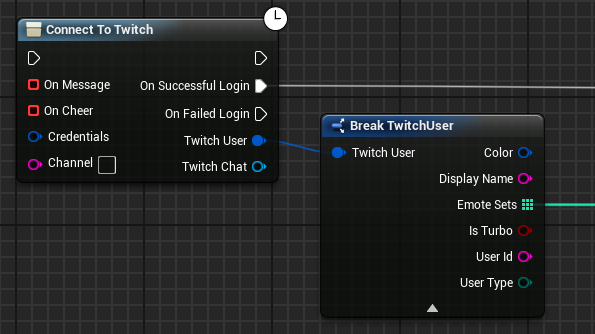
Let's first take a look at the logged in user's emotes. In order to get the user's emote sets (a groups of emotes), split the Twitch User pin returned from the "Connect To Twitch" node, and drag out of the "Emote Sets" pin.
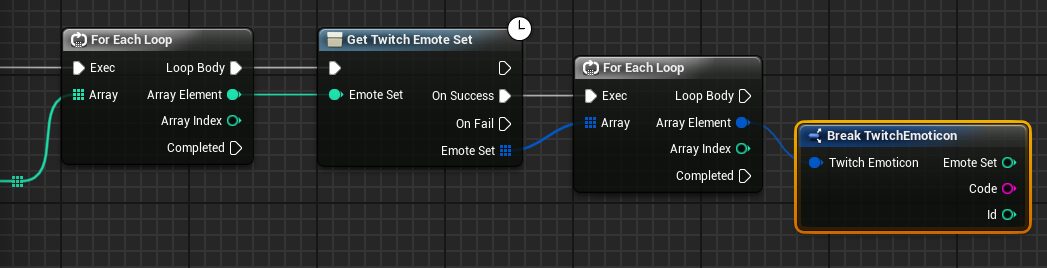
Now that we have the emote sets a user is part of, we can start getting the actual emotes. Use the "Get Twitch Emote Set" node for this as shown below. We also implemented a loop that will iterate over all of the available emote sets and in turn all of the available emotes.
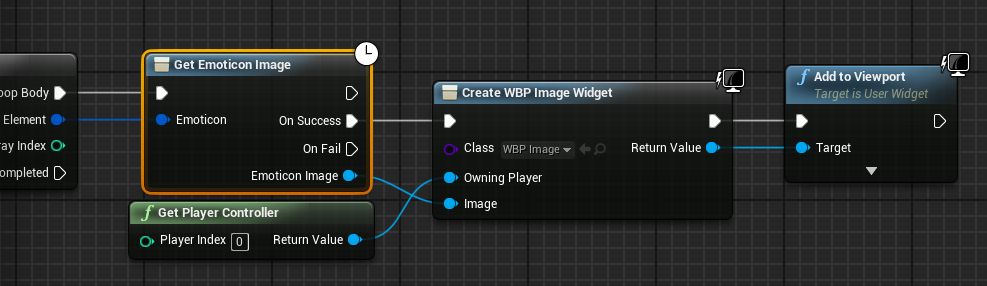
In order to download an emote, use the "Get Emoticon Image" node. If the download completes successfully, the OnSuccess pin will be executed, and the emoticon's images will be stored in the EmoticonImage pin. See the example below.