Using RSSFeeder
Now that you’ve installed and enabled RSSFeeder for your project, it’s time to learn how to use it.
First, start off by opening up a blueprint where you would like to retrieve an RSS Feed, and find the event (usually BeginPlay or Construct) where you want to fetch the RSS Feed. Now place the "Request RSS Feed" node (be sure to use the "High Level" one when starting out with RSSFeeder), connect this up to your event and enter the RSS Feed of your choosing into the "URL" parameter.
I’ll be using https://example.h2cstudios.com/coolgame/rss.xml in my example. You can also connect further code the the "OnSuccess" pin, and use the Title, Link, and Description to help display your content. We’ll be covering the Articles pin in a minute. You can see our example which fetches the feed, and creates a widget based on it (see the example project for the widget in question).
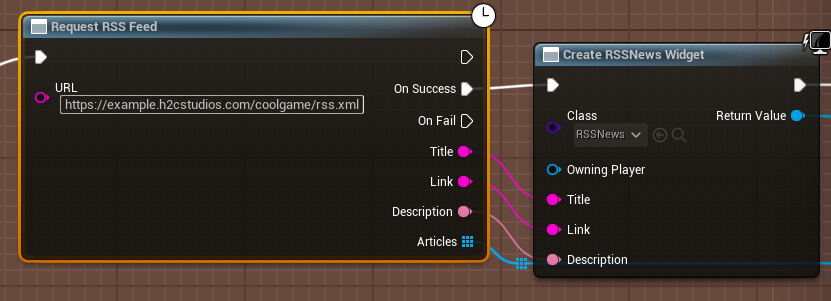
As I promised, we’d now get into the Articles pin. This pin contains an array of all of the items (articles) in your RSS Feed, so if we’d have an RSS Feed that would look like the following:
...
<channel>
  ...
  <item>
    <title>Updates to CoolGame</title>
    <link>https://example.h2cstudios.com/coolgame/page1.html</link>
    <description>Updates to CoolGame! New maps and More!</description>
  </item>
  <item>
    <title>CoolGame v1.0.2 Changelog</title>
    <link>https://example.h2cstudios.com/coolgame/page2.html</link>
    <description>CoolGame v1.0.2 Changelog</description>
  </item>
  ...
</channel>
...
The returned articles would contain both of our items (the "Updates to CoolGame" and "CoolGame v1.0.2 Changelog" articles). Now to actually use these articles, and fetch the resources specified with their links, we need to use a slightly modified "Foreach Loop" macro. In order to create this, press the plus icon on the macros, and enter the name ForStepLoop. In here, create the following blueprint:
Because RSSFeeder's code is asynchronous, a regular for loop would call the node without waiting for the result. This means that by the time the fetch article node finishes running, Unreal Engine will have forgotten about the for loop value. This leads to problems when creating our widget, so forcing the BP to go one-by-one works around this limitation.
NOTE: RSSFeeder does support fetching multiple articles at the same time, but you'll need to be careful about how you match your results
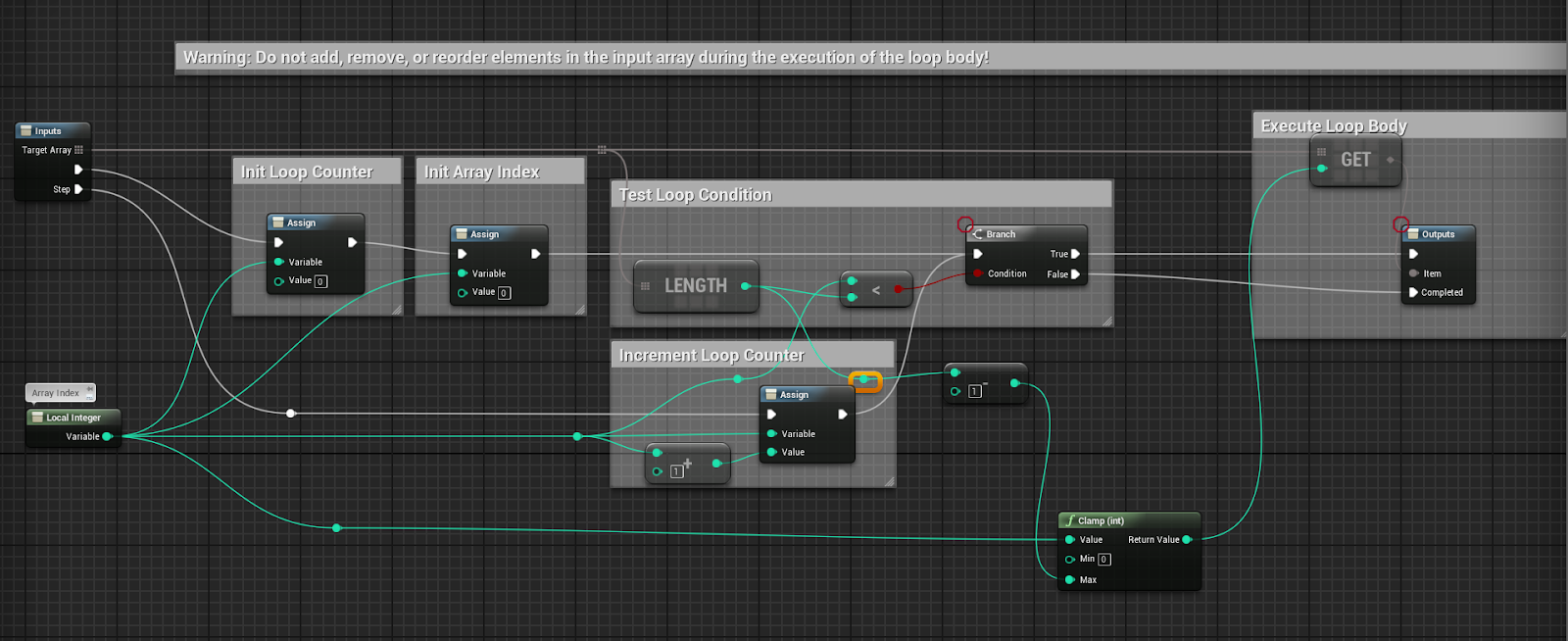
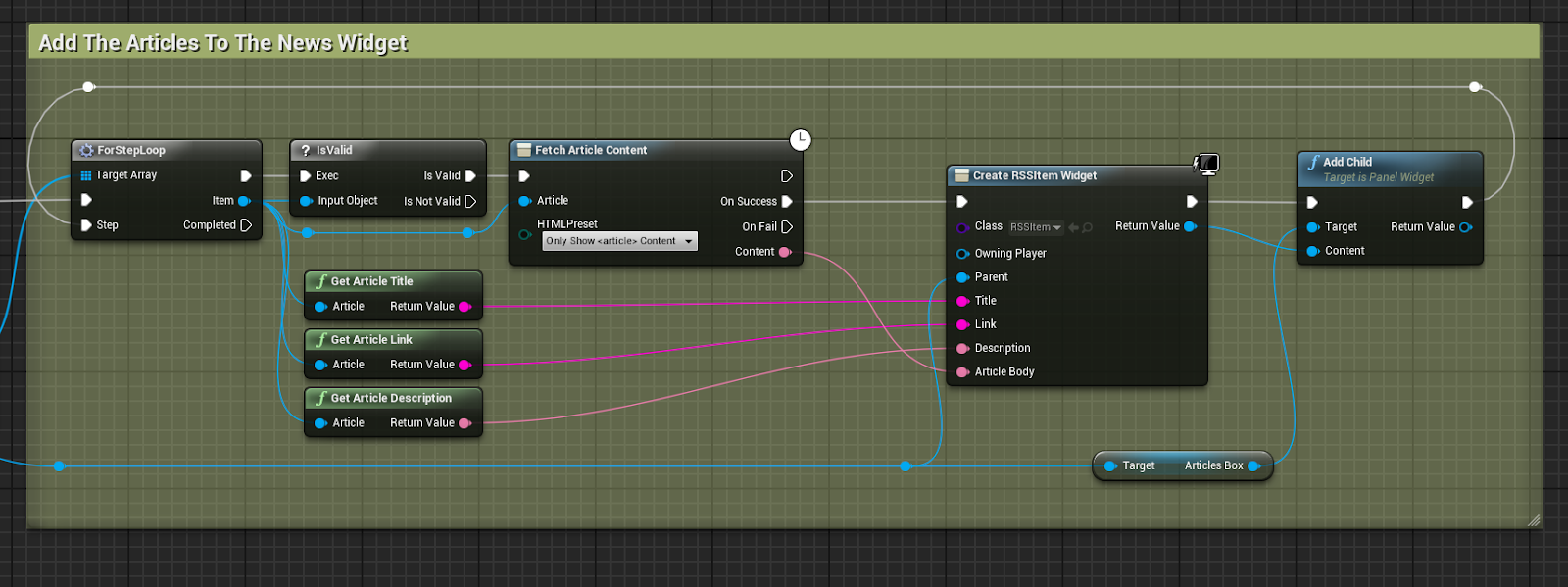
Or copy the code from the Example Project’s RSSFeederActor. Once you’ve created this macro, you can now place it, and connect the "Articles" pin from our "Request RSS Feed" node to it. The item parameter can be passed to the "Get Article Title", "Get Article Link", and "Get Article Description" nodes, to get the article/item’s title, link and description respectively. If you recall our example feed from above, the first article/item would return the following when calling these nodes:
| Node | Would Return |
|---|---|
| Get Article Title | Updates to CoolGame |
| Get Article Description | Updates to CoolGame! New maps and More! |
| Get Article Link | https://example.h2cstudios.com/coolgame/page1.html |
You can also use the "Fetch Article Content" node, which will retrieve the article the link specifies, and optionally do some HTML Filtering to make it easier for you to maintain a web version and a game version by having them both be the same articles. You can find a description of the various modes below:
| Mode | Description |
|---|---|
| As-is | Doesn’t do anything - will simply return whatever it retrieves (converted into a string) back to you. |
| Remove all HTML Tags | This will get rid of all of the HTML tags (like <p>...</p> & linesbreaks), and replace any known HTML encoded characters like “ (“ in HTML). |
Only Show <article> Content | Does the above (Remove all HTML Tags), but goes the extra mile to only the things in between the <article>...some content here…</article> tags. Useful for getting rid of things like menus if your site follows this convention! |
Select the mode you want, and connect whatever you want to do with the returned article’s content to the "On Success" execution pin. This node returns a value named "Content", which includes the text/content, filtered using the mode you specified.
Now be sure to connect back to the "Step" pin on your "ForStepLoop", otherwise you’ll only be getting access to one of your articles. Also be sure to connect it AFTER you’ve created your widget, using OnSuccess, and not to the "regular" execution pin. Doing this will cause middled up content, or even a crash! You can see my exmaple implementation which creates a widget for each article, and then adds it to my menu/display below:
This should cover the basic usage of RSSFeeder! If you want finer control, or access to elements of the feed that aren’t provided by this high level approach, please take a look at our Low-Level Interface section.