Using ConfigBP with a dedicated server
ConfigBP supports dedicated servers! You can use ConfigBP for things like storing credentials outside of your development environment, setting a MOTD, or making an easy-to-configure server executable for your game's players.
We have tested the following process with a release branch (on 11/11/2017) of Unreal Engine (4.18). We have submitted updates for Unreal Engine 4.17 and Unreal Engine 4.16 to theoretically work too, however, we are unable to guarantee support with these version as of right now.
Right now ConfigBP works out of the box for dedicated server on the Windows (x64) and Linux platform. The first thing you'll need to ensure you have is a source build of unreal engine. If you don't have this set up yet, please follow along with the following documentation/wiki articles on this topic: https://dev.epicgames.com/documentation/en-us/unreal-engine/building-unreal-engine-from-source (general) and https://dev.epicgames.com/documentation/en-us/unreal-engine/setting-up-dedicated-servers-in-unreal-engine (we recommend following along with this guide if you're new to dedicated servers too).
Once you've built Unreal Engine 4 from the source, you'll need to make sure you have a (matching) launcher build so we can obtain the plugin's files. Install ConfigBP as shown before (skip the project-specific enabling ConfigBP paragraph). Once ConfigBP has finished installing, head to your where you installed your launcher version of Unreal Engine 4. This will generally be C:/Program Files/Epic Games/UE_version/, C:/Program Files (x86)/Epic Games/UE_version/, D:/Program Files/Epic Games/UE_version/, or D:/Program Files (x86)/Epic Games/UE_version/, however, your install may differ. Once you're in your Unreal Engine installation's base path, head in to Engine/Plugins/Marketplace/. If you see a directory named ConfigBPPlugin, you have successfully completed this step. If you do not see this directory, please ensure you're not in the source build, or in the wrong version of unreal engine.
Now open up another window, and head to your source build of Unreal Engine 4. Head into Engine/Plugins/ here. Now check if there is a directory named Marketplace, if there is, please head into this, if not, please create it now, and head into it once you've done that. Now switch back to your original window, and copy the ConfigBPPlugin directory into your (newly created) Marketplace directory in your Source Build. The final result should look something like the following:
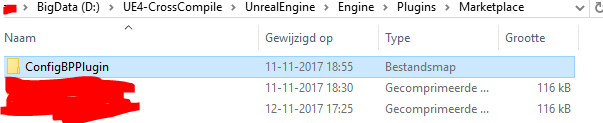
You're now ready to build your project's dedicated server! You can find my example project (without the plugin! You will still need to follow the above steps) here: TBA. I built it's dedicated server for Linux with the following command:
<PathToYourSourceBuild>/Engine/Build/BatchFiles/RunUAT BuildCookRun -project="D:/NameHere/Documents/Unreal Projects/ConfigBPDedicated/ConfigBPDedicated.uproject" -platform=Linux -clientconfig=Development -serverconfig=Development -cook -server -serverplatform=Linux -noclient -stage -pak -archive -build -archivedirectory=d:/ConfigBPDedicatedServer
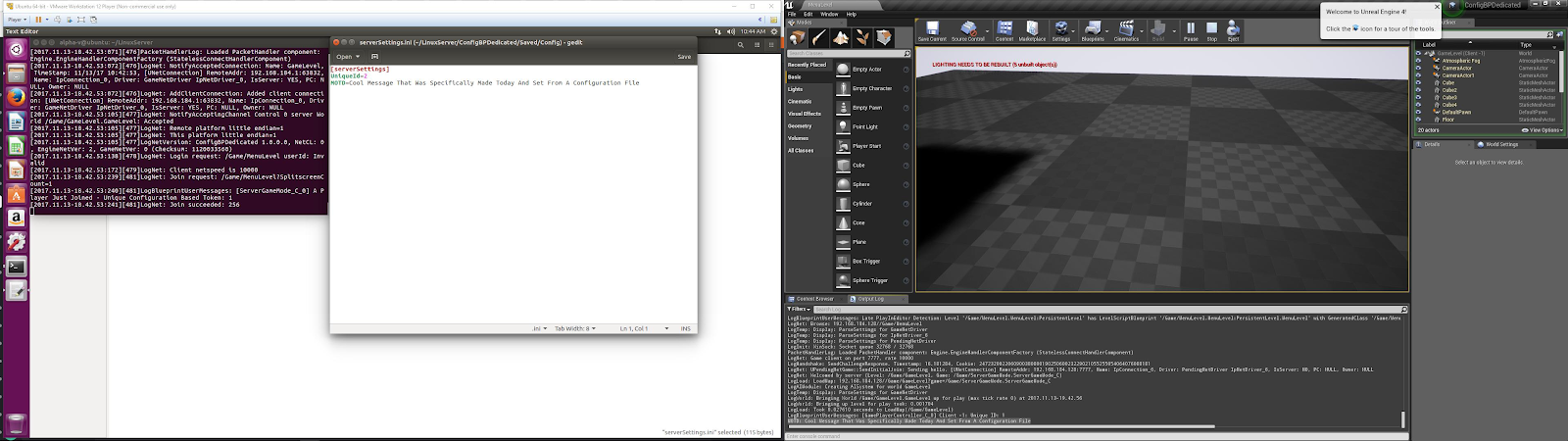
You may need to adjust the bolded parts to match where you want the server to build to/where you downloaded the example project to. A screenshot of the server running on ubuntu, with a connected windows client can be found below: