Installing NetShield
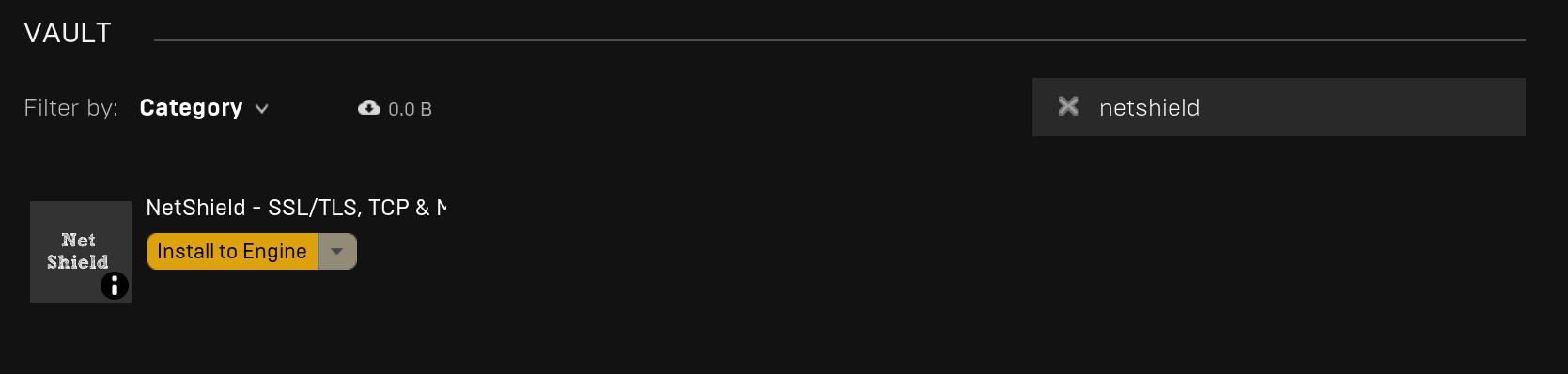
Congratulations on purchasing NetShield! In this section, we’ll quickly show you how to install NetShield using the Epic Games Launcher. Once you’ve purchased NetShield, please ensure that you restart the launcher. This will ensure that your Vault refreshes, and it should show NetShield now. As for the Vault, this is located at the bottom of your Library tab (UNREAL ENGINE > Library > Scroll Down). Once you’re in here, search for NetShield, and press the Install to Engine button. This will bring up a popup asking you which engine version you want to install it to.
Use the dropdown to select whatever version your project is using, and press the Install button. NetShield will now begin installing to unreal engine and will be ready for use shortly!
Once you’ve opened the project you want to use NetShield for, head to Edit > Plugins, and find NetShield under the Installed tab here. Press the enabled checkbox for NetShield, and restart your editor (as prompted by a little yellow popup in the bottom). You are now ready to start using NetShield in this project!
